Reports
After logging into the Tracking Portal, select Reports from the left navigation panel. This page allows you to generate and download comprehensive reports on all vehicle trips, events, and activities.
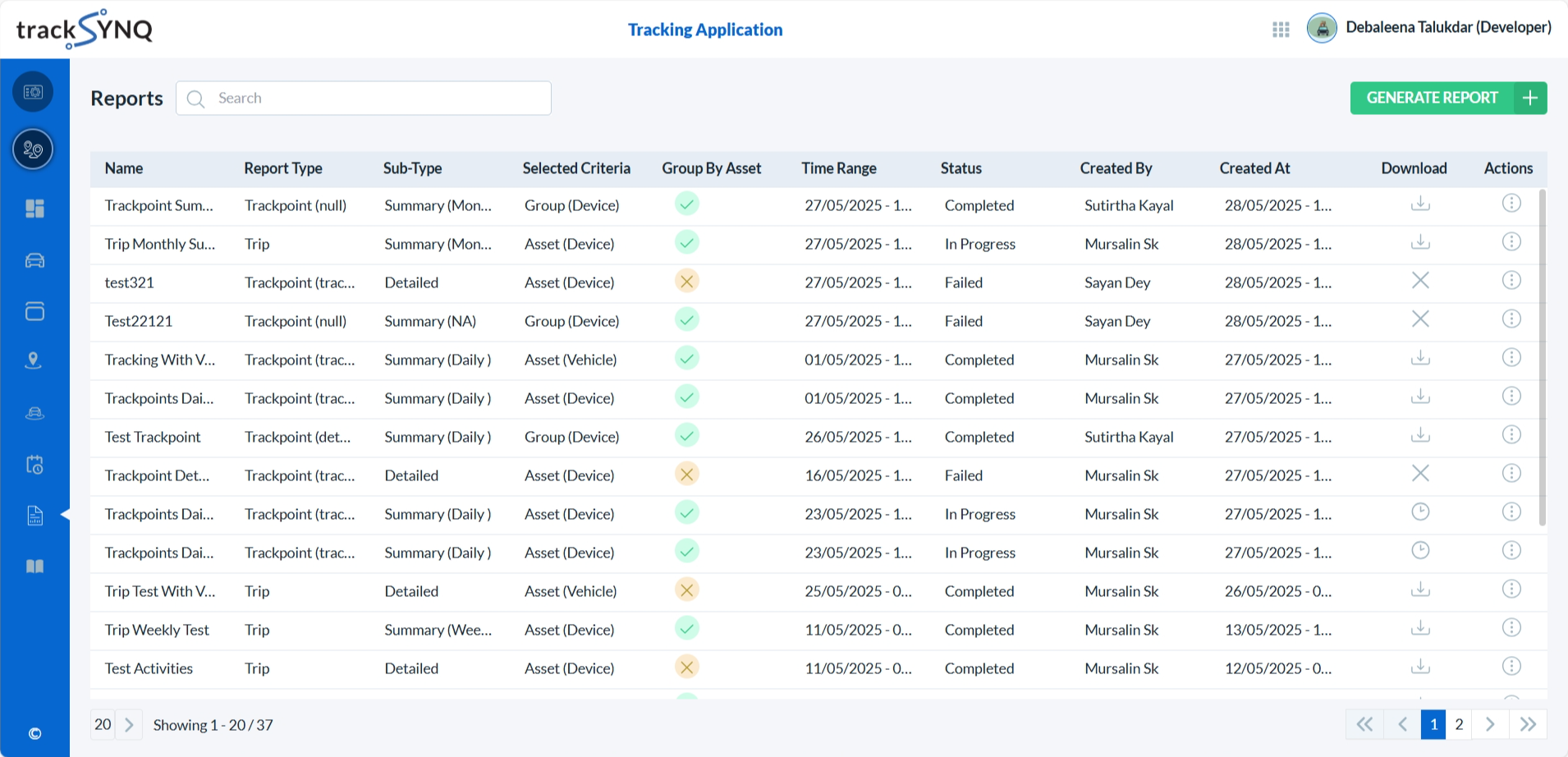
Reports List
The list displays all the generated reports.
Each report from the list displays:
Name – The report name assigned by the user who generated the report.
Type – Indicates the type of report: Trackpoint, Trip, Event, Raw, Activity, or Trip Idle Parked.
Sub-type – Specifies whether the report is Detailed or a Summary.
Selected Criteria – Defines the report scope, such as Group (Device or Vehicle) or Asset (Device or Vehicle).
Group by Asset – Indicates whether the data is grouped by individual assets.
Time Range – The time period selected for the report.
Status – The current status of the report: Completed, In Progress, or Failed.
Created By – The username of the individual who generated the report.
Created At – The date and time when the report was generated.
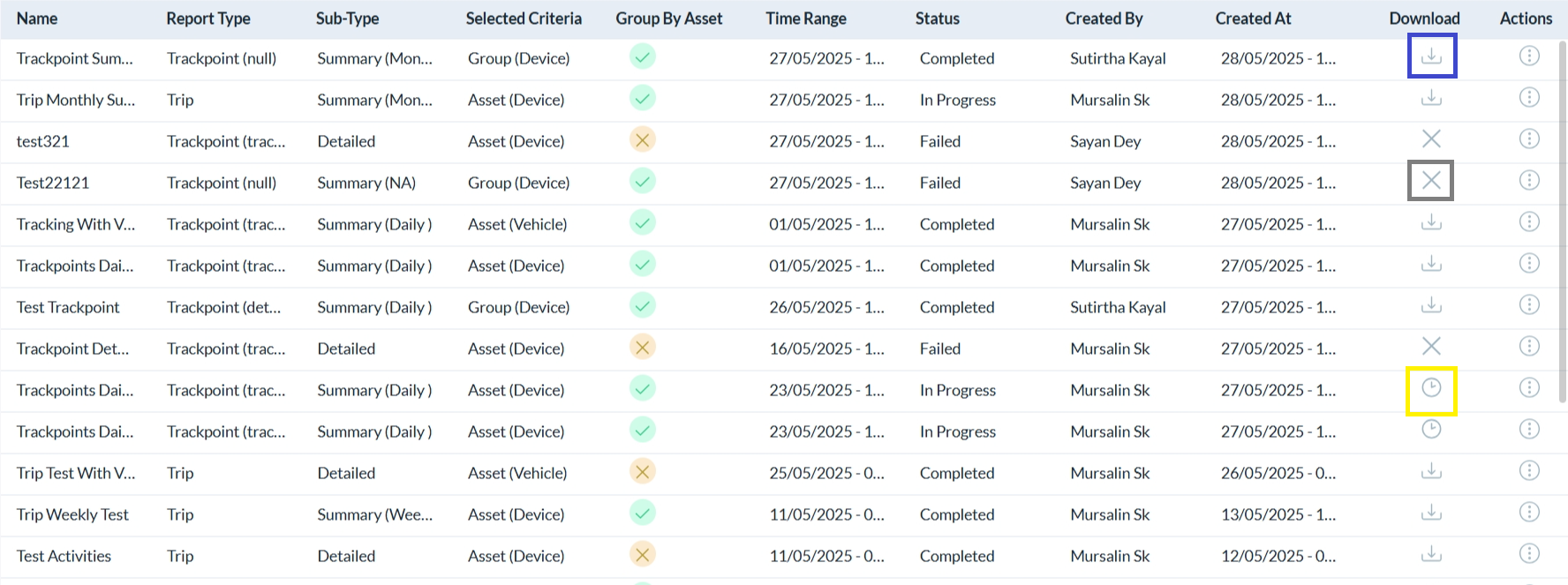
Each generated report can have one of the following download statuses:
Completed – Highlighted in blue. The report has been successfully generated and is available for download.
In Progress – Highlighted in yellow. The report is still being generated and will be available once completed.
Failed – Highlighted in gray. The report generation was unsuccessful and cannot be downloaded.
You can search report by the name of the report generated.
Pagination controls at the bottom of the page allow you to navigate through the list.
Generate Report
- To generate a report click on the
 button.
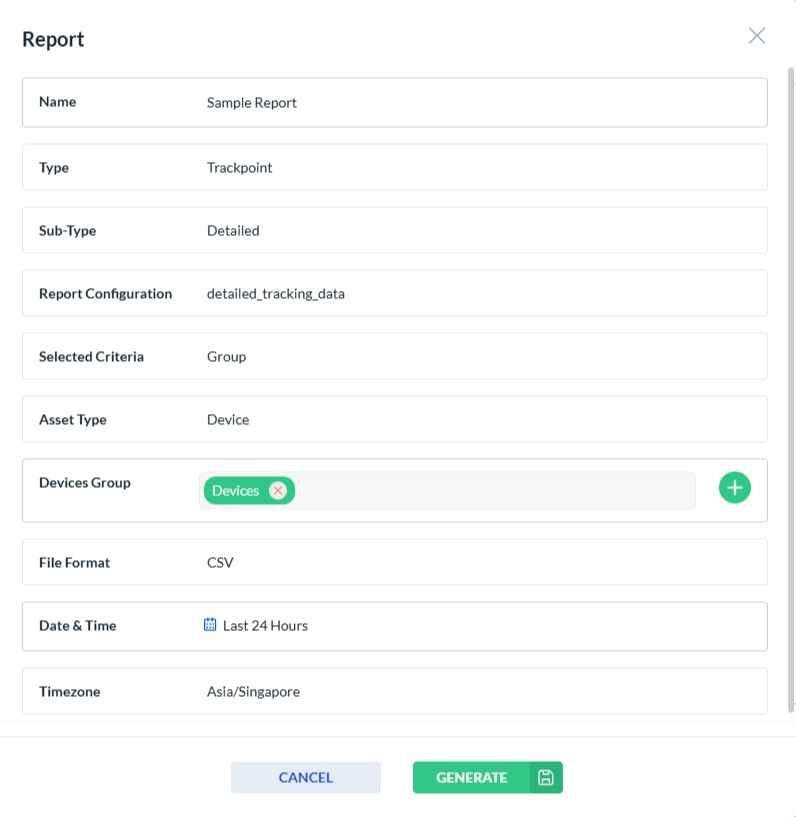
- A form will appear as shown below. You need to first enter a name for the report you want to generate and then choose the type of the report - Trackpoint, Trip, Event, Raw, Activity, or Trip Idle Parked.
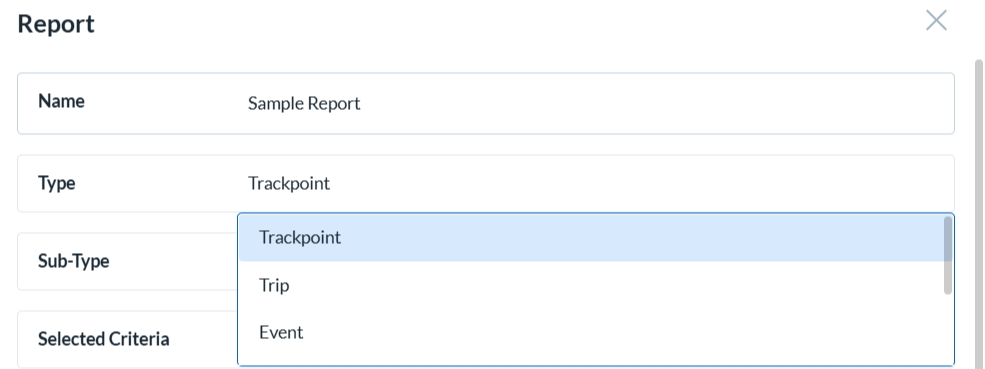
Generating Report for Track Point
To generate a report for Track Points, select the Trackpoint option from the Type dropdown.
From the Sub-type dropdown, choose either Detailed or Summary.
If you select Detailed, you must choose a Report Configuration that has been preconfigured in the Management Portal. This determines the specific data fields included in the report.
If you select Summary, choose a Summary Interval: NA, Daily, Weekly, or Monthly.
Under Selected Criteria, choose either Group (Device Group or Vehicle Group) or Asset (Device or Vehicle).
Choose the Asset Type as either Device or Vehicle.
Click the + button to select the relevant Device/Vehicle Groups or individual Devices/Vehicles, based on your choices for Selected Criteria and Asset Type.
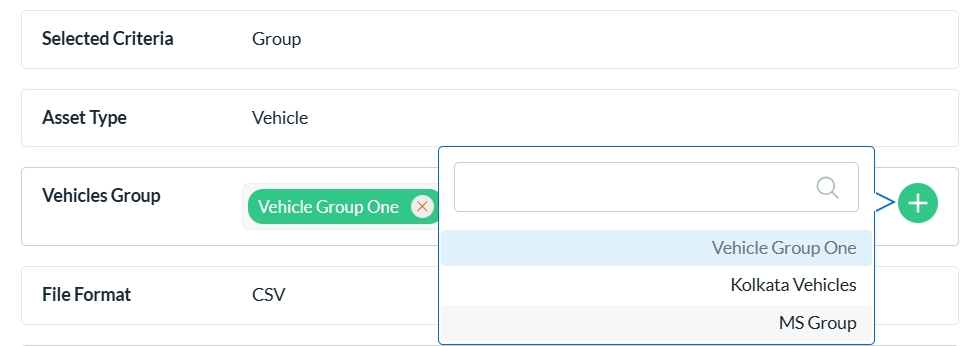
The File Format is automatically set to CSV.
Select the Date & Time range for which you want to generate the report.
Choose the appropriate Timezone to ensure the report reflects the correct time data.
- Finally click on
 button to generate the Report.
Generating Report for Trip
To generate a report for Trips, select the Trip option from the Type dropdown.
From the Sub-type dropdown, choose either Detailed or Summary.
If you select Summary, choose a Summary Interval: NA, Daily, Weekly, or Monthly.
Under Selected Criteria, choose either Group (Device Group or Vehicle Group) or Asset (Device or Vehicle).
Choose the Asset Type as either Device or Vehicle.
Click the + button to select the relevant Device/Vehicle Groups or individual Devices/Vehicles, based on your choices for Selected Criteria and Asset Type.