Login
Welcome to the TrackSynq Mobile App. This guide explains each sign‑in option that you can follow and you’ll be ready to explore the app in no time.
Sign‑In Options
Our app supports two sign-in options:
1. Email and Password:
- Enter your registered email address and password manually.
- Tap Log In.
- If you have access to the tracking application of multiple clients then you will be taken to the Application Selection screen.
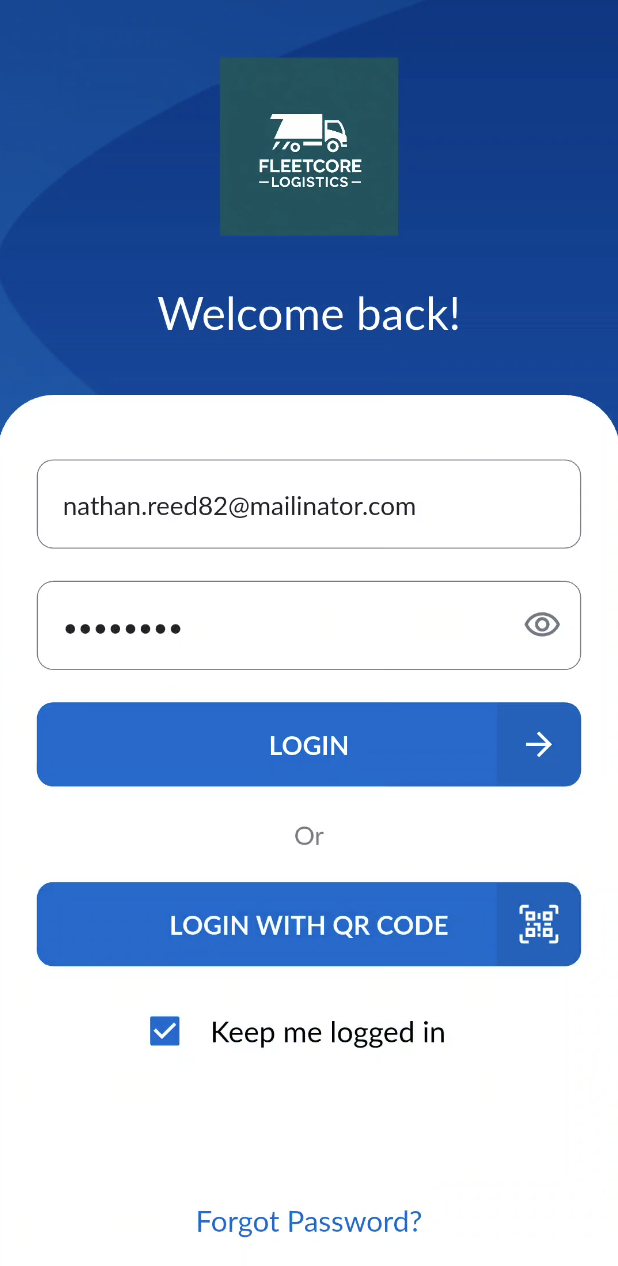

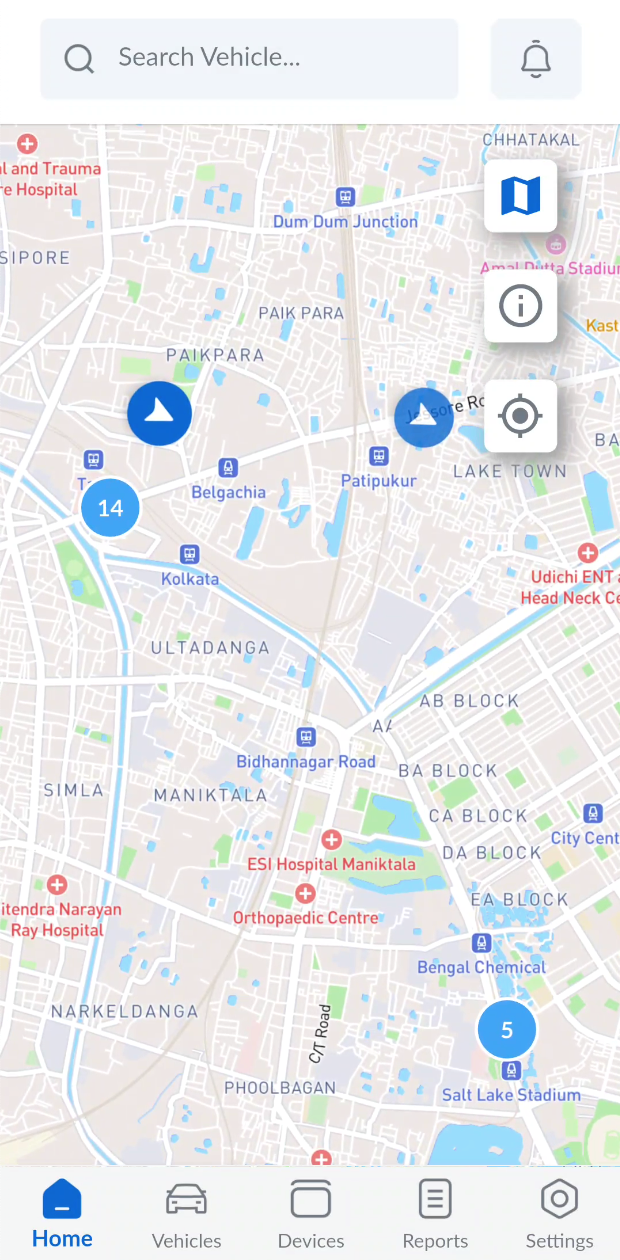
- If you have access to the tracking application of only one client, that client will be selected automatically, and you’ll be taken directly to the Home Screen, which displays real-time movement and tracking details for your vehicles.
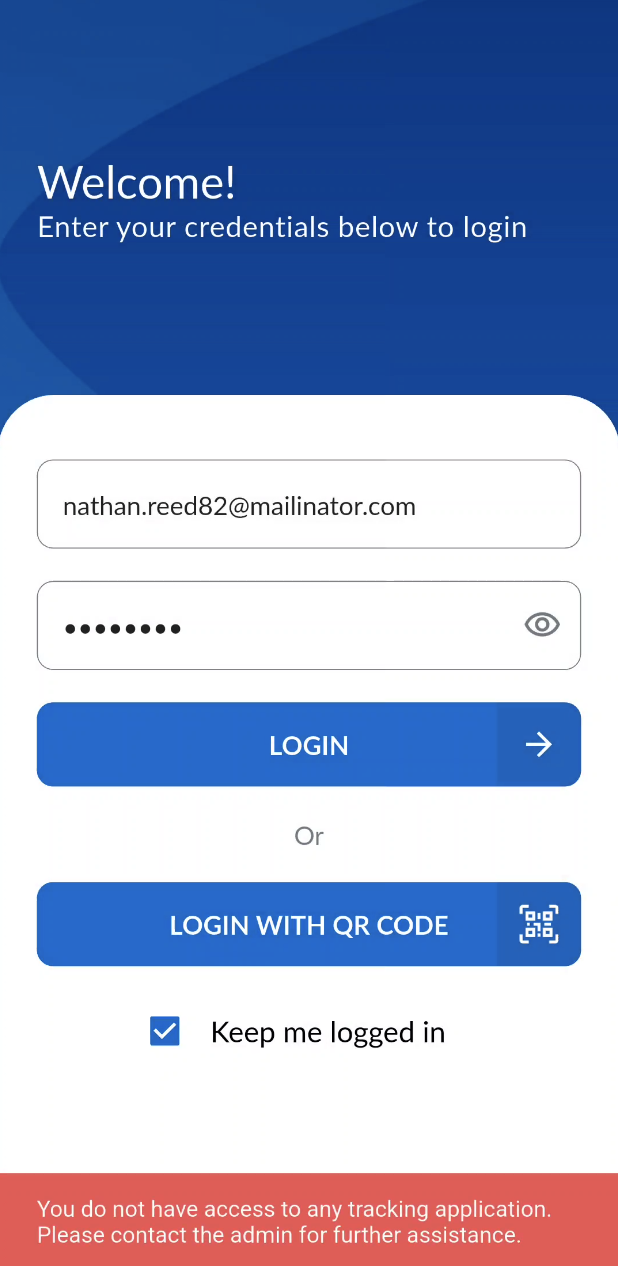
- If you do not have access to the tracking application for any client, an error message will appear prompting you to contact the Administrator for access.
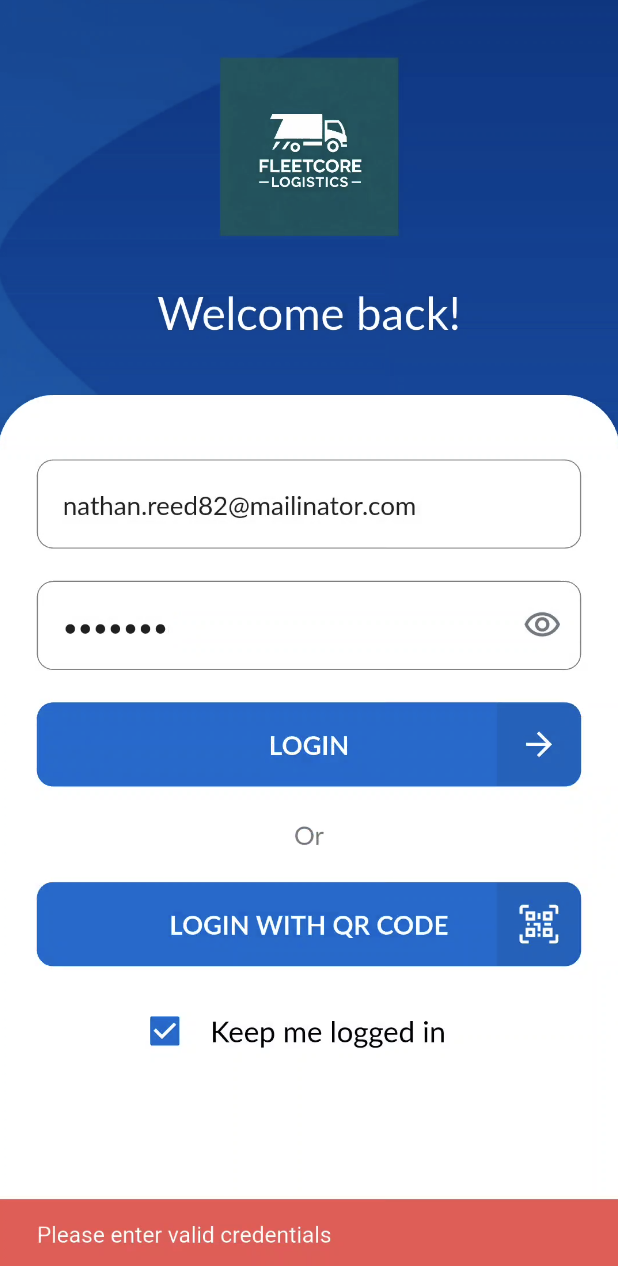
If you enter invalid credentials, an error popup will appear letting you know something isn’t right. You can tap the visibility icon in the password field to reveal or hide your password and make sure it’s correct.
2. Scan QR Code
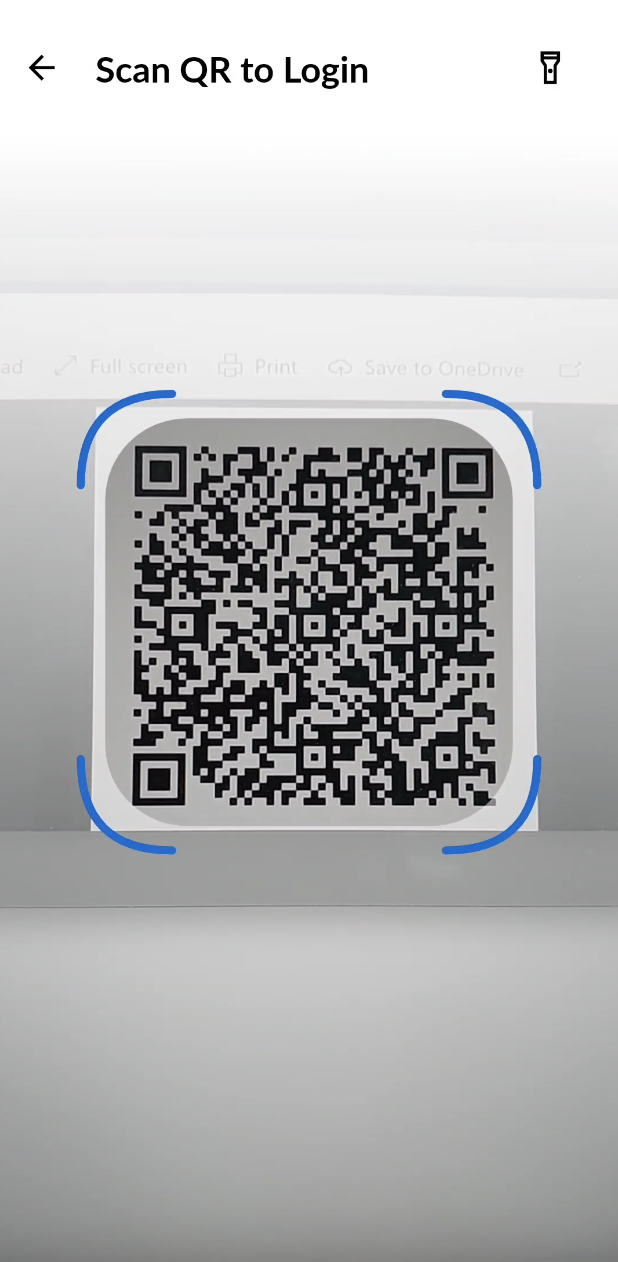
Once your email is registered with the portal, a unique QR code will be generated and sent to your email. You can simply scan this code to log in to the app.
- Tap Login With QR Code.
- If prompted, allow camera access.
- Point your camera at the QR code sent to your email.
- Once the valid credentials are recognised, you are taken to the sign-in page with the credentials already entered.
- Tap Login to sign in and go to the Application Selection screen.
If you choose to uncheck the ‘Keep me logged in’ option, you will be signed out when the app is closed and prompted to log in again upon reopening.
Forgot Password
If you forget your password, here’s how to reset it easily:
- On the Sign‑In Screen, tap Forgot Password? below the login form.
- Enter your registered email address.
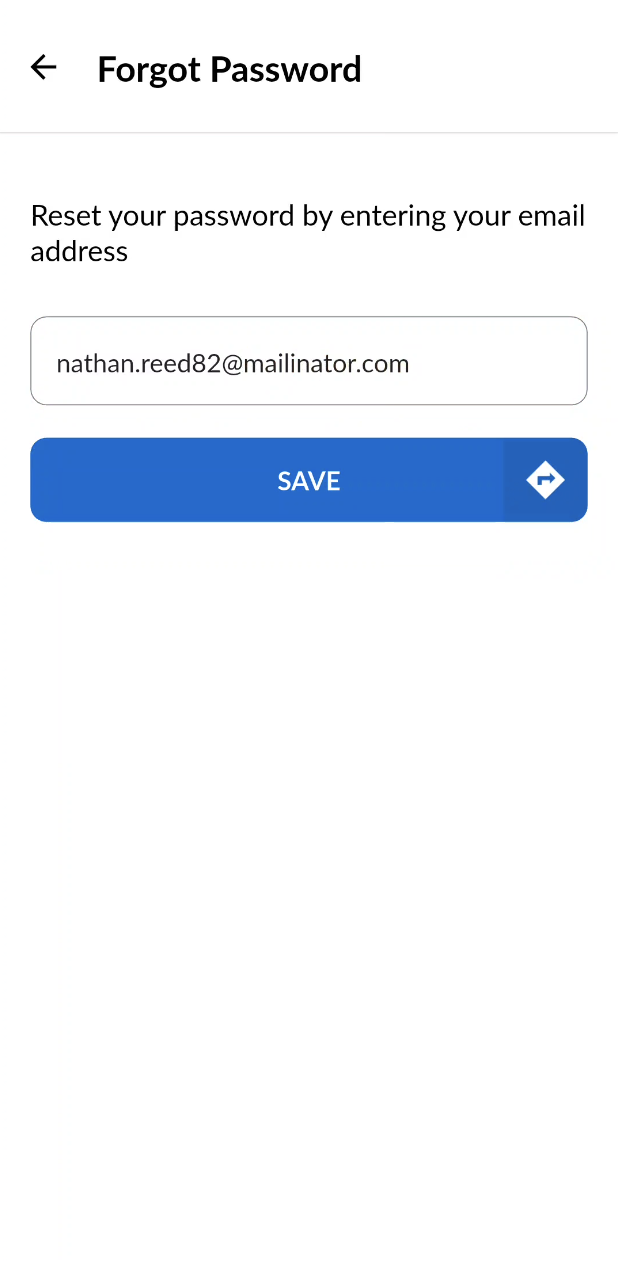
- Tap on Save.
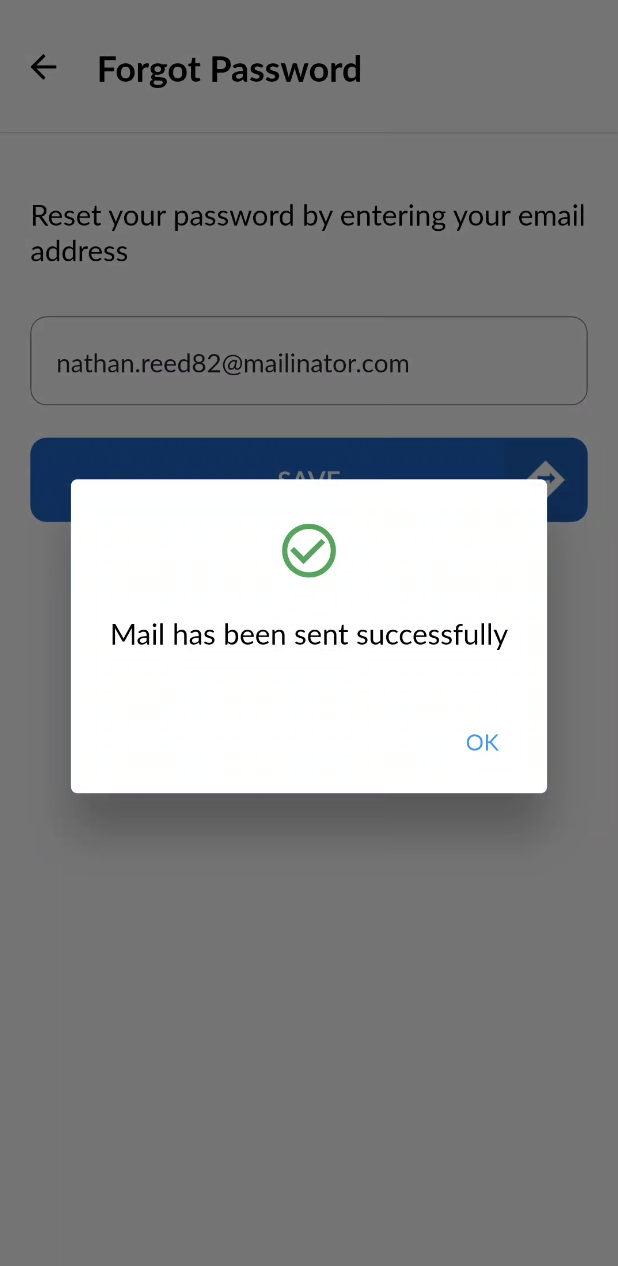
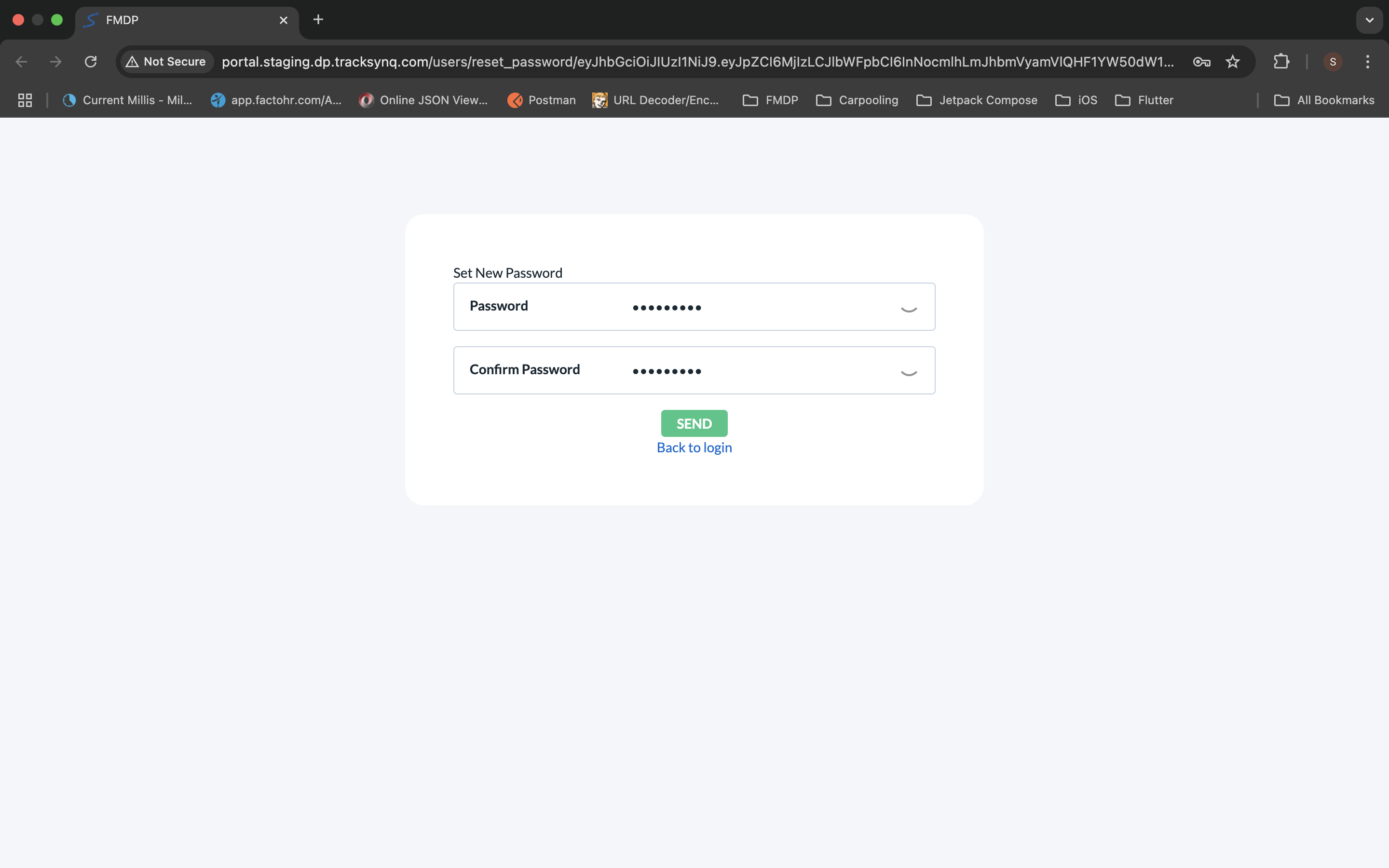
- You will receive an email with a password reset link.
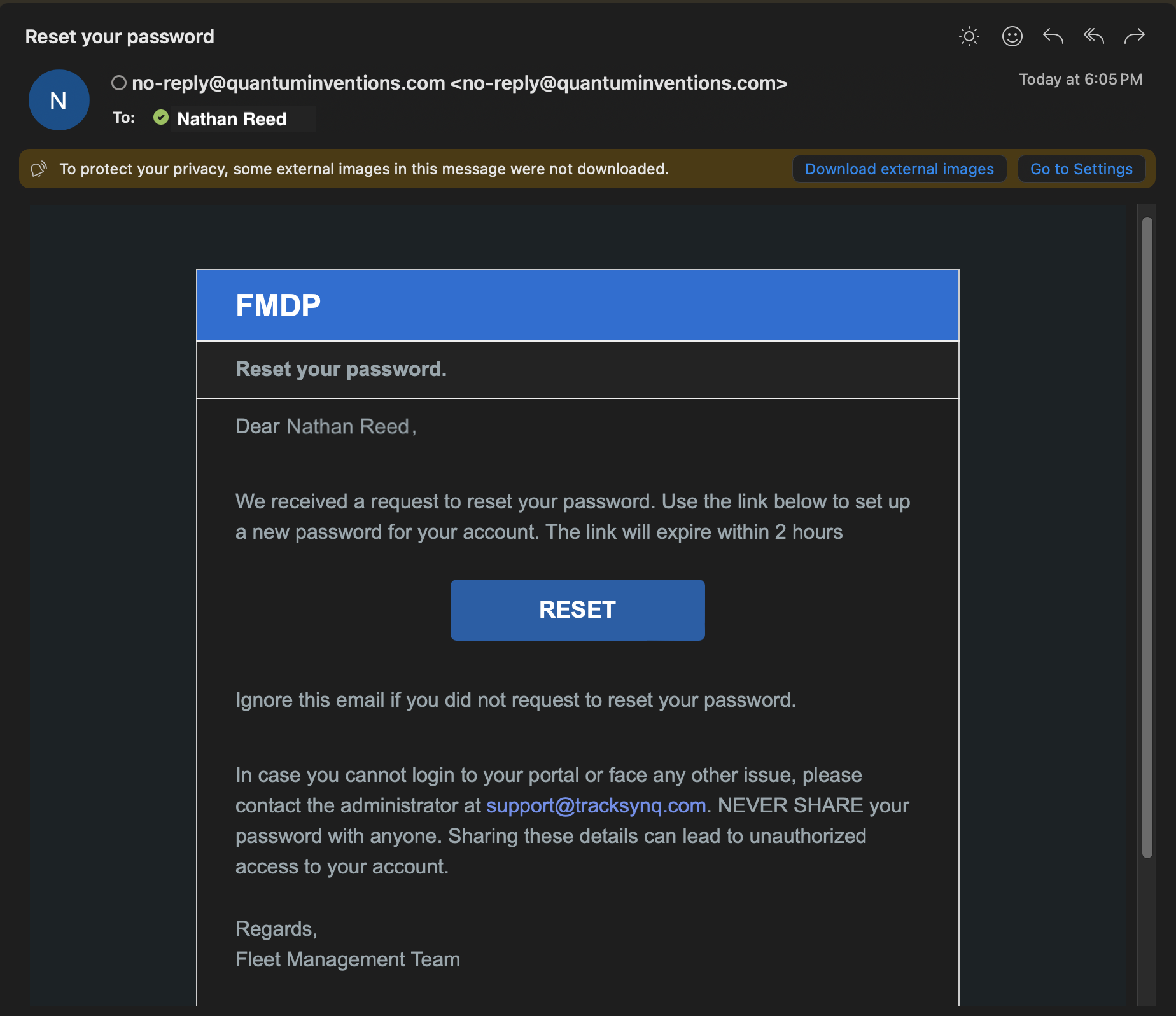
- Open the link and follow the instructions to create a new password.
- Return to the app and log in using your new credentials.